

Prerequisites
- Node.js 18+
- An LLM API key (Anthropic, OpenAI, etc.)
Installation
Step 1: Connect to an MCP Server
@modelcontextprotocol/server-everything is a reference MCP server with sample tools like add, echo, and longRunningOperation.refreshToken and clientId instead of a static access token:
Step 2: Execute Tools Directly
Call tools without an LLM—useful for unit tests:Step 3: Create a HostRunner
Connect an LLM to your MCP tools:Step 4: Run Prompts
Step 5: Write a Test
Step 6: Run Statistical Evaluations
Complete Example
Generate evals from the Inspector
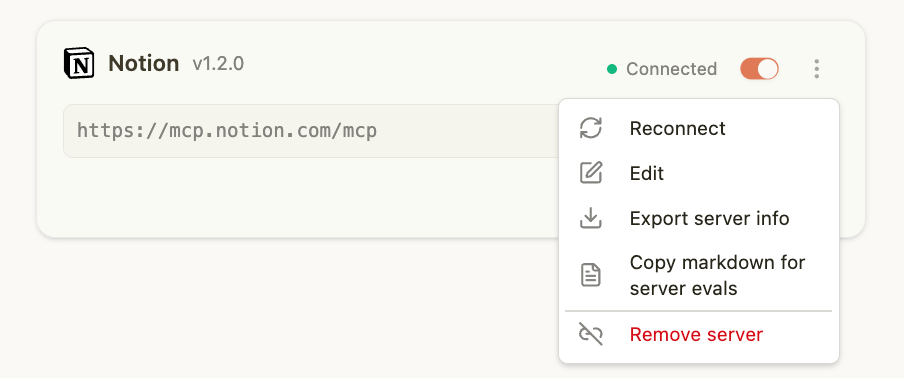
You can also generate eval code directly from the MCPJam Inspector:- Connect your MCP server in the Inspector
- Click the ⋮ menu on the server card
- Select Copy markdown for evals
- Paste the copied markdown into an LLM (Claude, ChatGPT, etc.)
- The LLM will generate eval test code using
@mcpjam/sdk
@mcpjam/sdk API reference, so the LLM has everything it needs to write your eval tests.
Next Steps
Connecting to Servers
STDIO vs HTTP servers
Testing with LLMs
Prompting and result inspection
Running Evals
Statistical evaluations
API Reference
Complete API docs